
April 19, 2016 00:07 by
 Armend
How to Activate Google Analytics on Your DNN Site
You can't go wrong using Google Analytics (GA) to track the performance of your site. It has awesome reporting capabilities and you can't beat the price; it's free! And out-of-the-box DNN is fully integrated with Google Analytics. Just follow these instructions and you'll be running Google Analytics in a matter of minutes.
To Activate Google Analytics on your Site
- Get your Google Analytics Account Number : Your first step is register you complimentary Google Analytics account. These is no charge for this GA account, and it takes just a couple of minutes to get your account number. Visit www.google.com/analytics to activate your Google Analtics account; and click the Access Google Analytics button and follow the on-screen instructions. When you have your GA account number you are ready to go to Step 2 below.
- 2 Install your Tracking Code : Google Analytics tracks your site activity through the use of a javascript snippet that contains your GA account number (also known as your tracking ID). This javascript tracking code must appear in the <head> section of every page you want to have tracked.
Good news—DNN automates this for you. All you have to do is add your GA account number to a field on your site and DNN takes care of the rest. Here's what you do:
- Login to your DNN site using an Administrator account.
- Go to the Admin | Google Analytics page. You will see a field where you enter your GA account number:
- Paste your GA account number into this field and click Update.
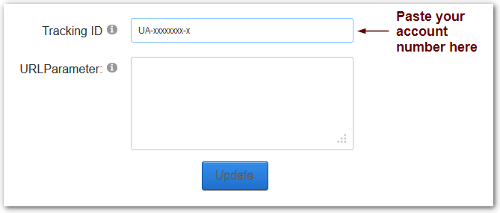
That's it! Google Analytics will now start tracking your site.
Verify your Setup
It can take up to 24 hours for data to appear in your Google Analytics account after you've installed your tracking code. But in the meantime, you should take a minute to confirm that your tracking is setup correctly. You can confirm your tracking using any of the following options:
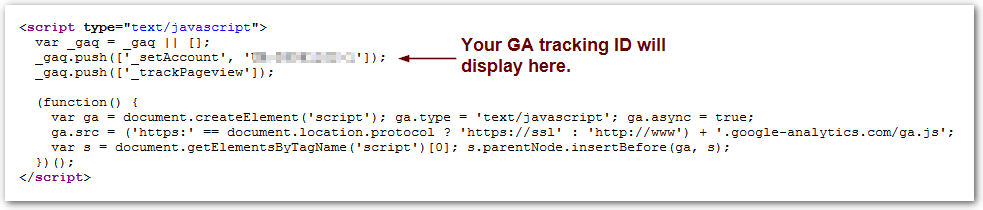
- View Page Source Code : Take a quick look at the source of a page on your site to make sure your Google Analytics javascript is there. As long as you see javascript code similar to the following (with your own tracking ID value) of course, your setup is correct:
- Check your Google Analytics Dashboard : Login to your Google Analytics account (www.google.com/analytics) and click the Admin link. You should see a status of 'Waiting for Data.' This indicates that your code is correctly installed, but no data has been collected yet. If you return in roughly 24 hours you should see this status change to 'Tracking Installed' and you are good t