How To Customizing Page Titles and Meta Data in DNN
There are several key fields that search engines use in their ranking algorithms: page title (that’s the text you see in the title bar of the browser), meta description (that’s text describing your page to search engines, which your visitors don’t normally see) and ‘H’ tags, which are your H1/H2/H3 tags denoting which are the headers in your content.
How you do this in DNN:
The page title and description are stored in the Page Settings. Simply open up the page settings for the current page, and you can edit these directly. Here’s the steps:
- Login as an Administrator, then go to the ‘Edit Page’ drop down on the top right hand side of the screen.
- Choose ‘Page Settings’ from that menu, and it will load up the settings for the page you’re currently browsing.
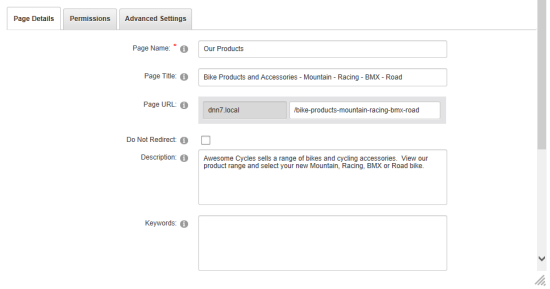
- To modify the page title, edit the value in the ‘Page Title’ field. In my example below, I’ve chosen some words that we can assume match the keywords/phrases that our fictitious bike company uses. Try and keep the length below about 70 characters so that, when it gets displayed in a Search Engine Results Page (SERP), you can see the whole title.
- To change the Page Description, type into the ‘Description’ box. Remember that your visitors won’t see this on your site. The key to a good description is again hitting your keywords, but doing so in a way that actually reads well. If your page gets included in a SERP, it’s likely that the search engine will use the Page Description as the two or three line description for your page. Try and keep it to under 150 characters so that it stands a good chance of displaying nicely in a SERP listing, and the ratio of your keywords to the rest of the text is not too diluted.
- When you’re finished, click ‘Update Page’ – the settings screen will close and you’re finished. (You’ll note on my example I didn’t bother with the Meta Tags at all)
Overview: H Tags
DNN doesn’t enforce the use of any particular H tag, so you’re free to edit one into your content however you like. It’s also possible to define a custom skin for your DNN site that shows a H1 for a specific page value (such as the module title for a piece of content).
I’d recommend leaving any ‘H’ tags out of your skin and just making sure that you define a H1 tag for each separate piece of content that you write (like a blog post title, for example). But others may disagree with me and just be happy to define a H1 tag using the page name of each page. I prefer to customize every bit of content for maximum impact – but this does take much, much longer.
To make something a ‘H1’ in DNN, here’s how you do it:
Use the ‘Edit this Page’ button in the ‘Edit Page’ dropdown to enter edit mode for the current page.
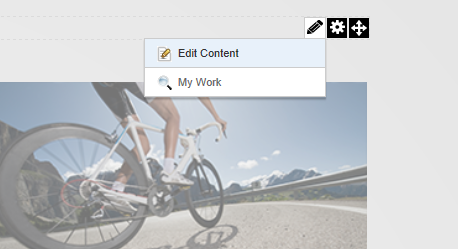
- Hover over the ‘Pencil’ edit icon and click on ‘Edit Content’
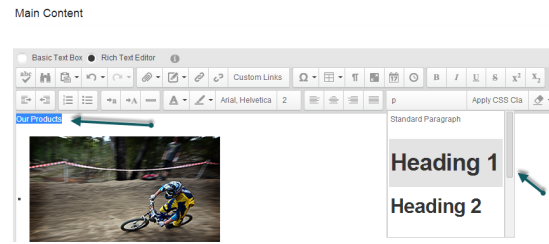
- Type in your header (or select an existing header with your mouse)
- Use the style drop down to select ‘Heading 1’
About ASPHostPortal.com:
ASPHostPortal.com is The Best, Cheap and Recommended ASP.NET & Linux Hosting. ASPHostPortal.com has ability to support the latest Microsoft, ASP.NET, and Linux technology, such as: such as: WebMatrix, Web Deploy, Visual Studio, Latest ASP.NET Version, Latest ASP.NET MVC Version, Silverlight and Visual Studio Light Switch, Latest MySql version, Latest PHPMyAdmin, Support PHP, etc. Their service includes shared hosting, reseller hosting, and Sharepoint hosting, with speciality in ASP.NET, SQL Server, and Linux solutions. Protection, trustworthiness, and performance are at the core of hosting operations to make certain every website and software hosted is so secured and performs at the best possible level.