Now you'll be able to add Google maps to posts. Post might have the primary post map, and with tokens you'll be able to include a limiteless quantity of maps to content articles. Maps may be very easily created and edited by way of the in-built Map editor.
Within this blog I'll clarify How you can insert new google maps into DotNetNuke 7.3. Google has up-to-date Google maps to new UI and features.

So will start with Google maps very first.
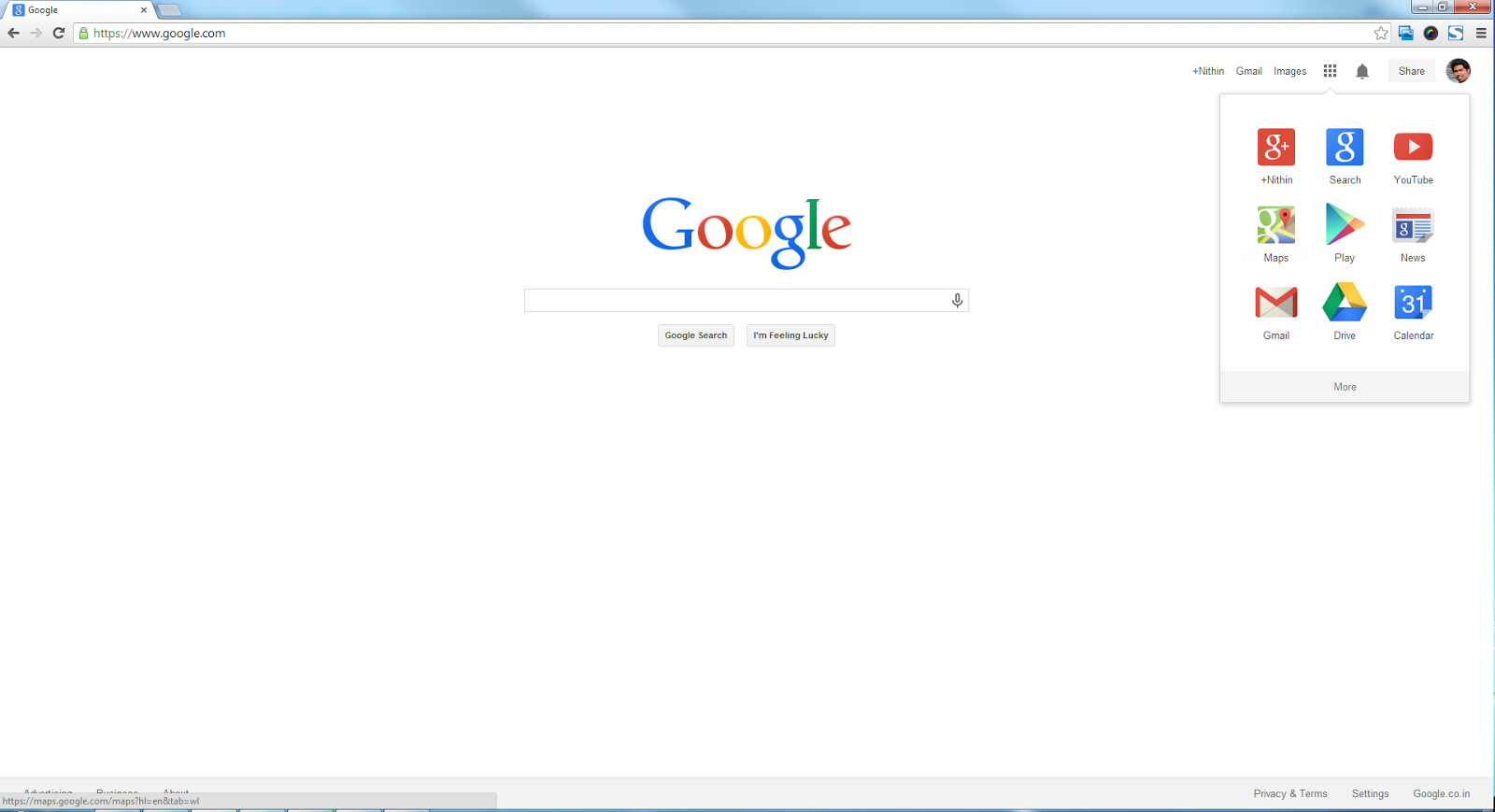
Click the Google applications on right top facet of one's browser. Open up Google maps appplication.
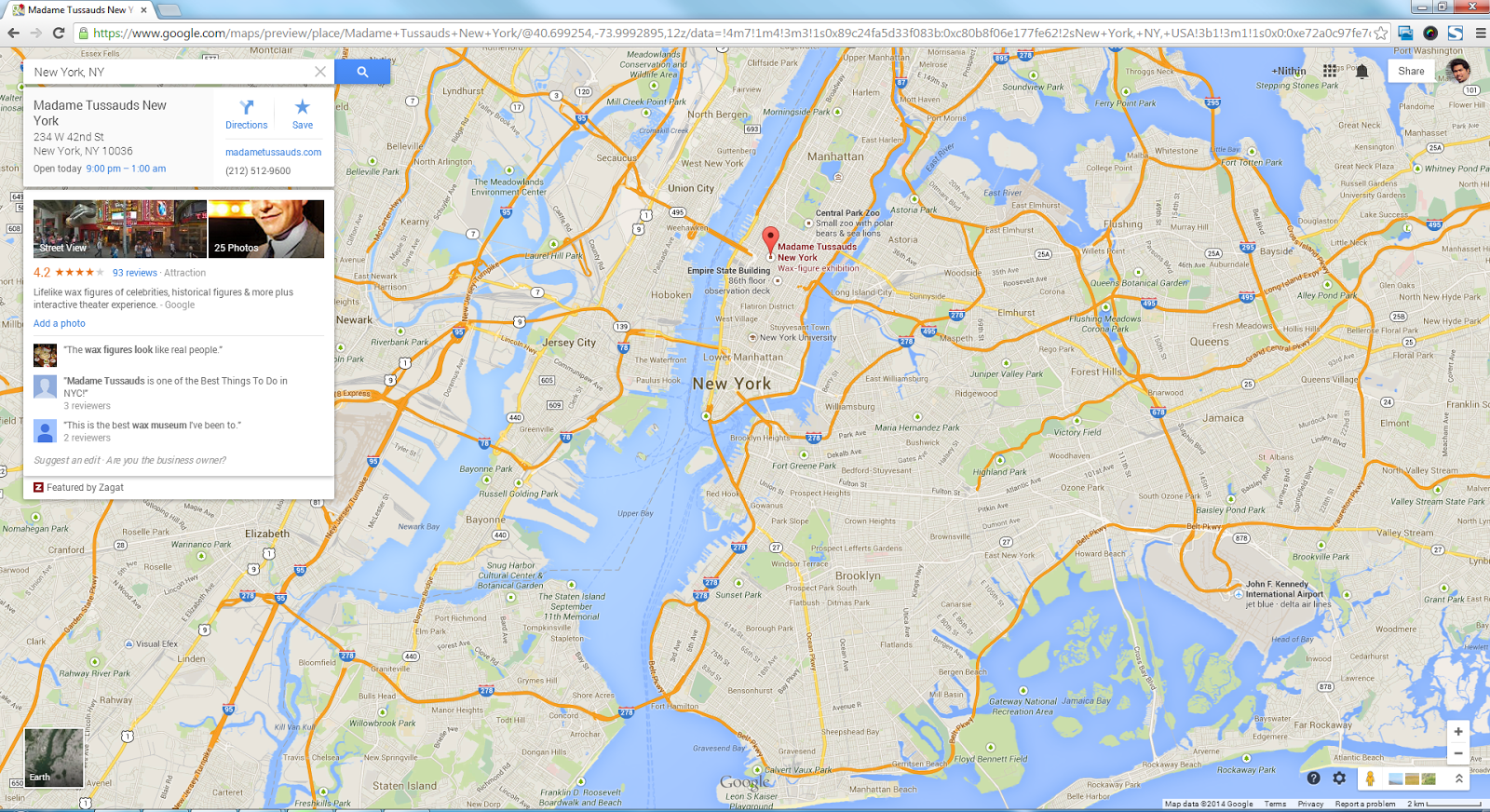
You will be landed to New Google maps. Type your address or location in the search box. For instance i have added Madame Tussaud Newyork.
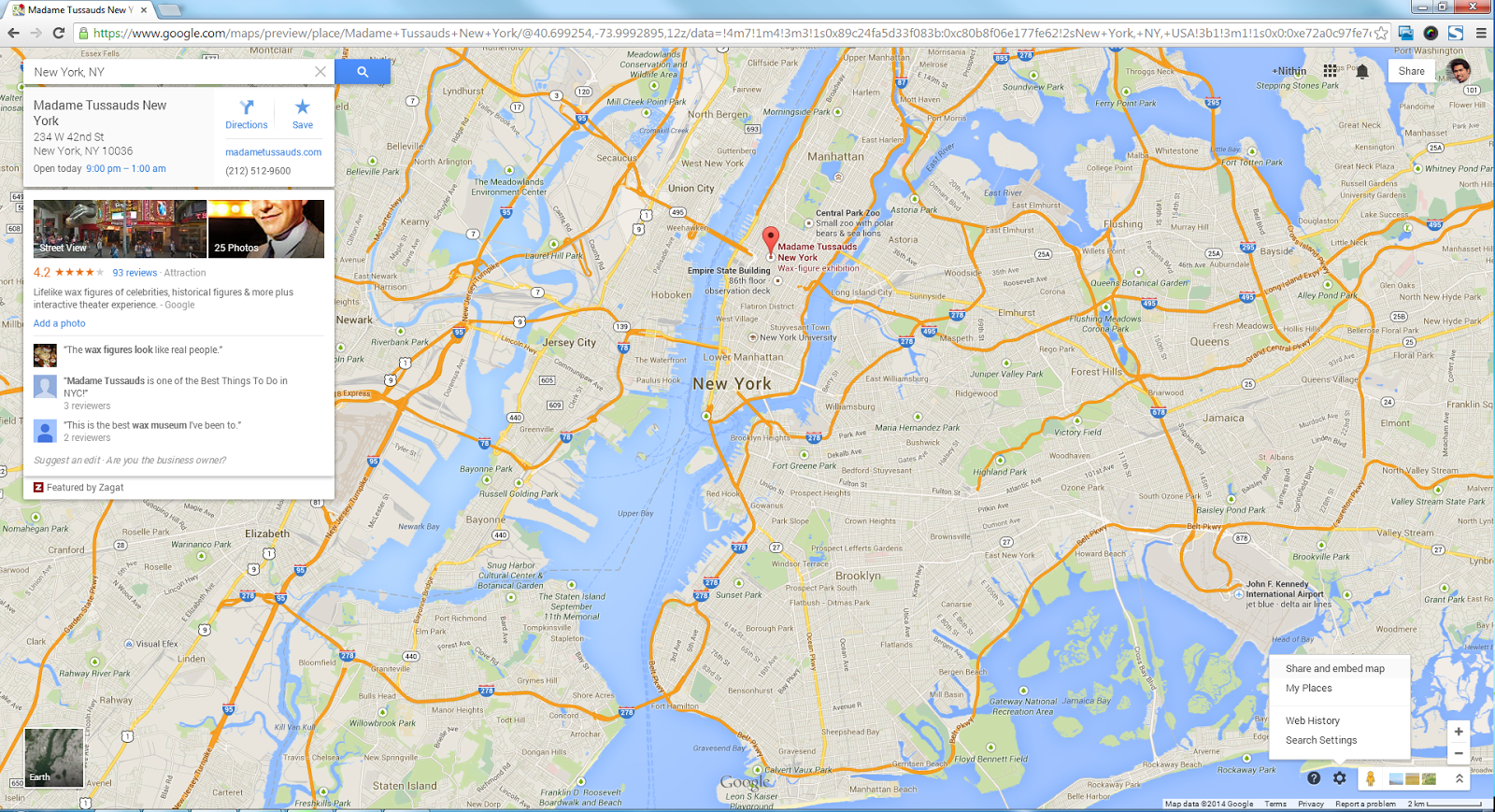
Once your location is targeted on google maps.Click on setting at the right bottom side of the map and select share and embed maps.
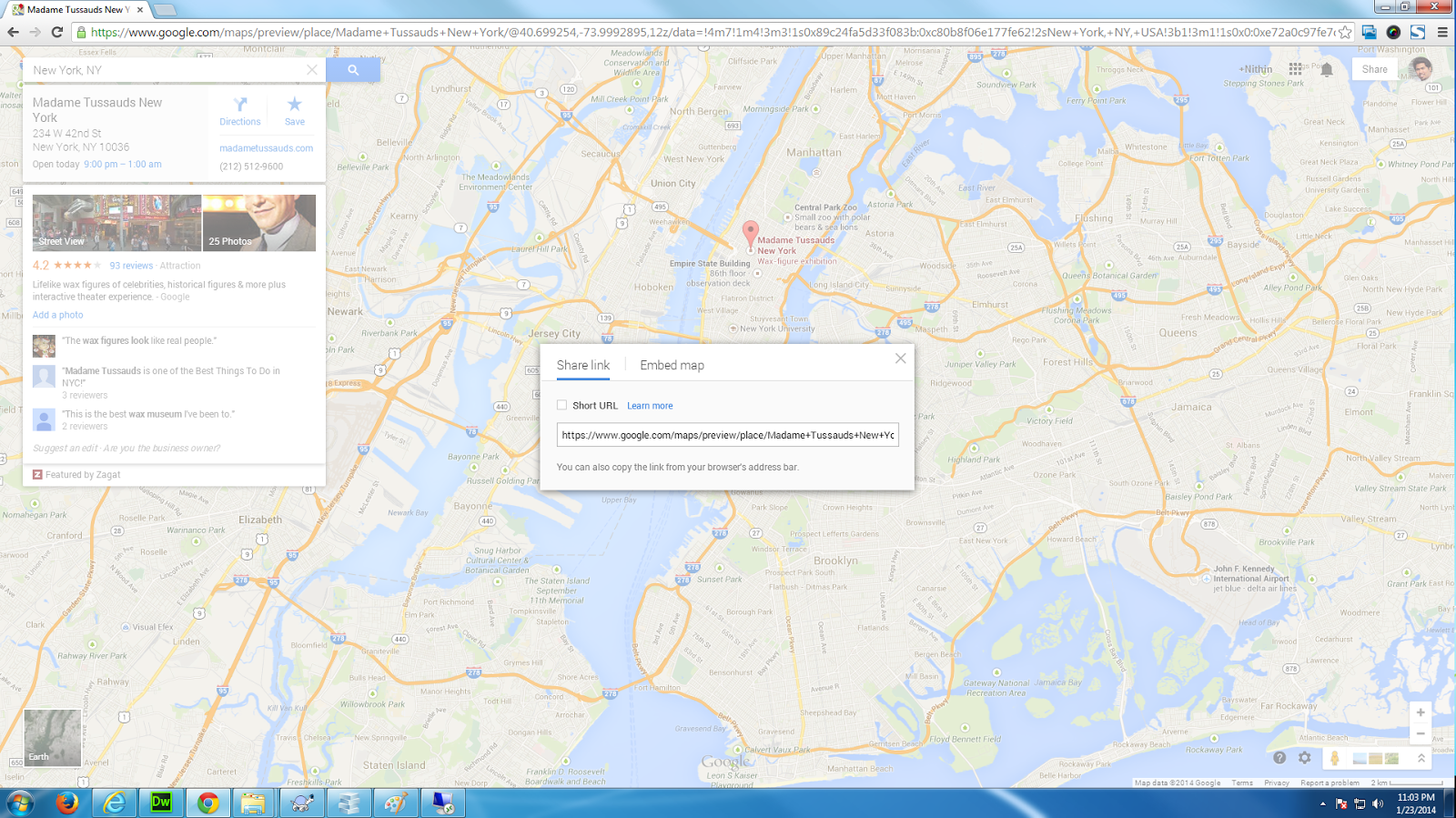
A modal popup will look on the display with Share hyperlink and Embed map alternative. By this you are able to possess the link in the map to provide to any hyperlinks if required else we can select to embed the map into your site or application. Also you'll be able to shorten the URL if necessary .
Given that we need to embed google maps into DNN we are going to choose Embed maps alternative. After you click on embed maps option you'll have a smaller sized see of maps you've selected i.e in my scenario Madame Tussauds The big apple with ratings, reviews, bigger map choice and obtain directions. You can even bookmark if necessary.
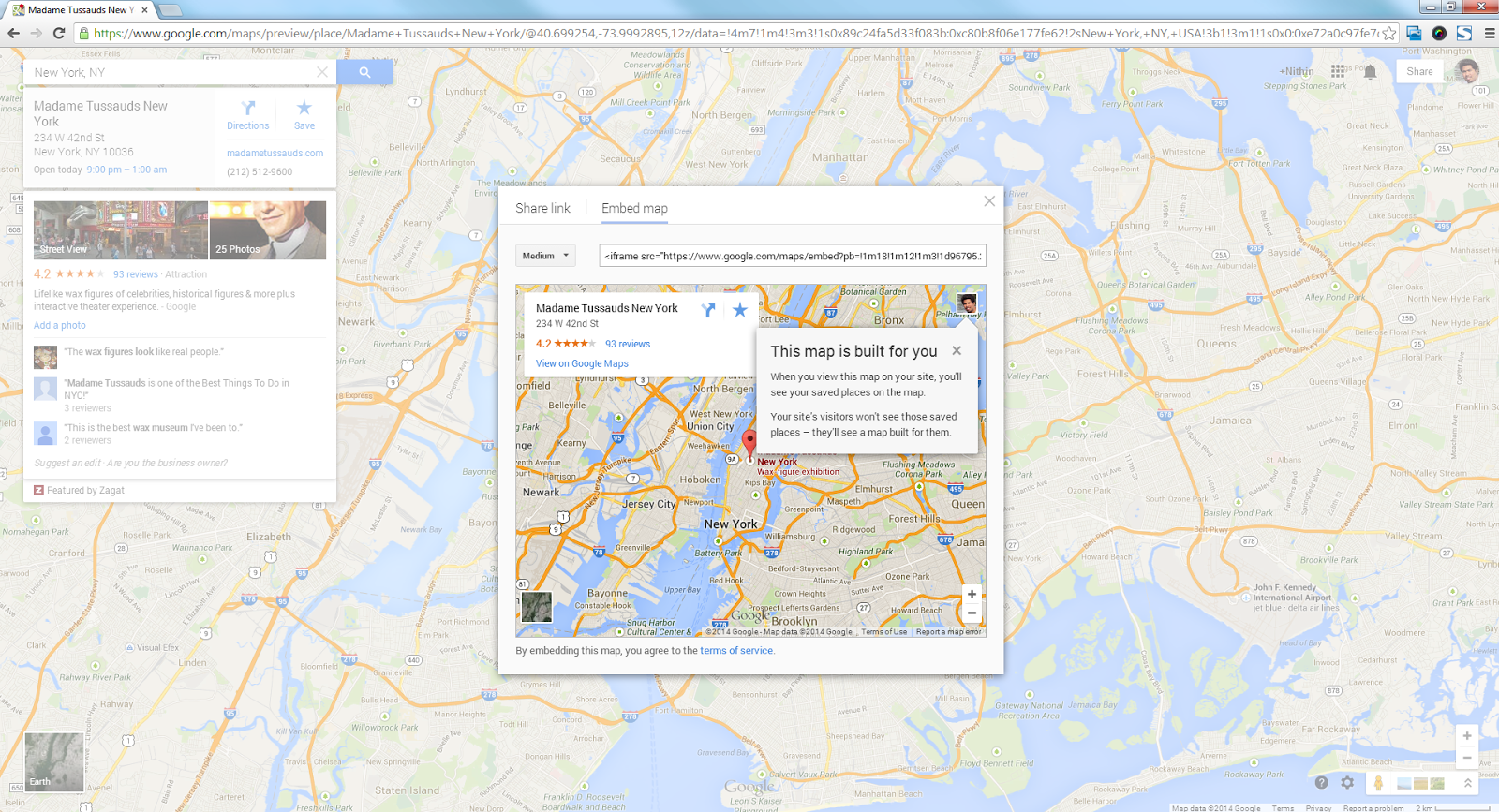
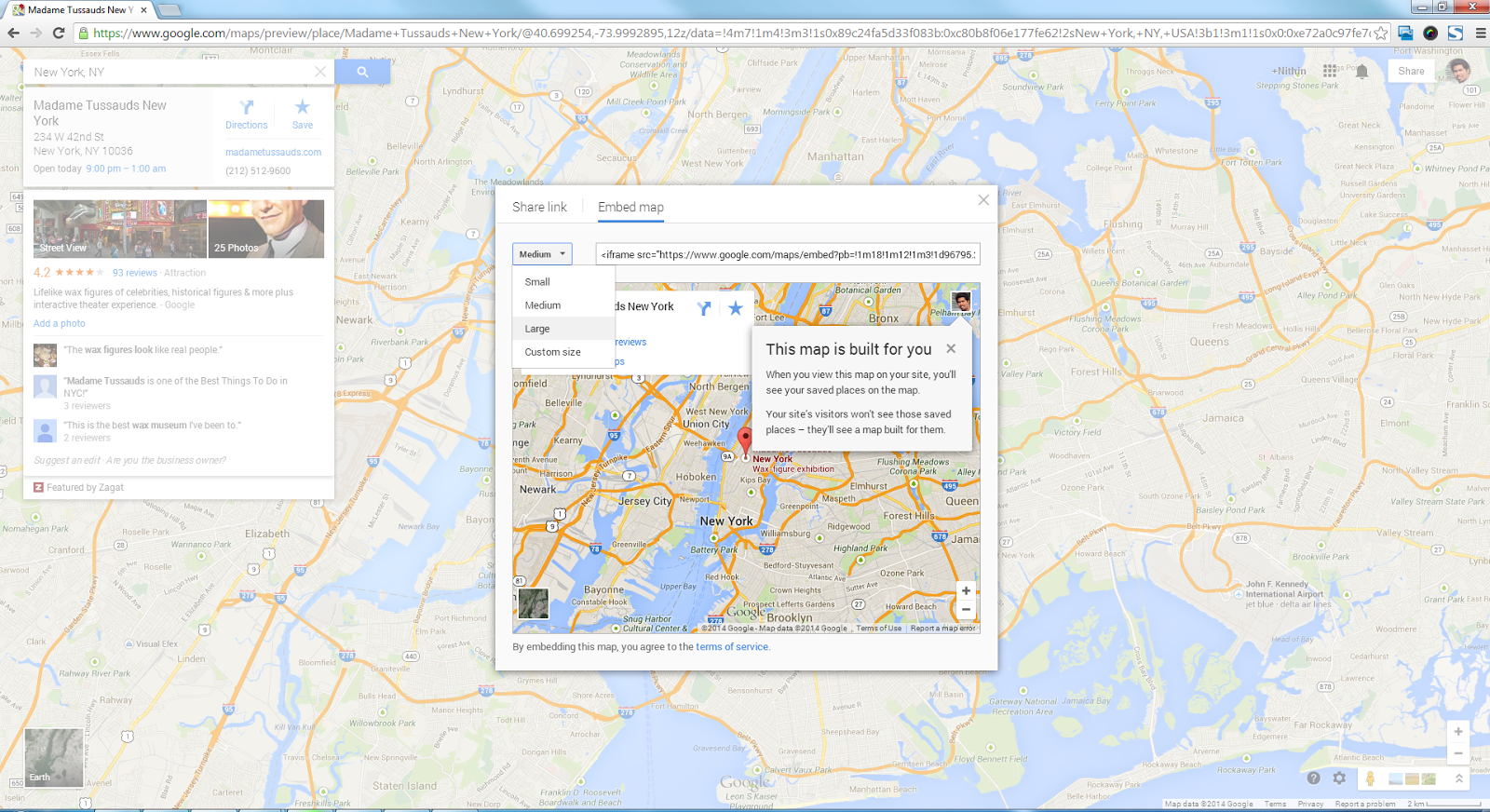
OK once you have got map on Embed maps. Now you can choose the size of the map required based on your requirement. Google offers small, medium, large and custom size.
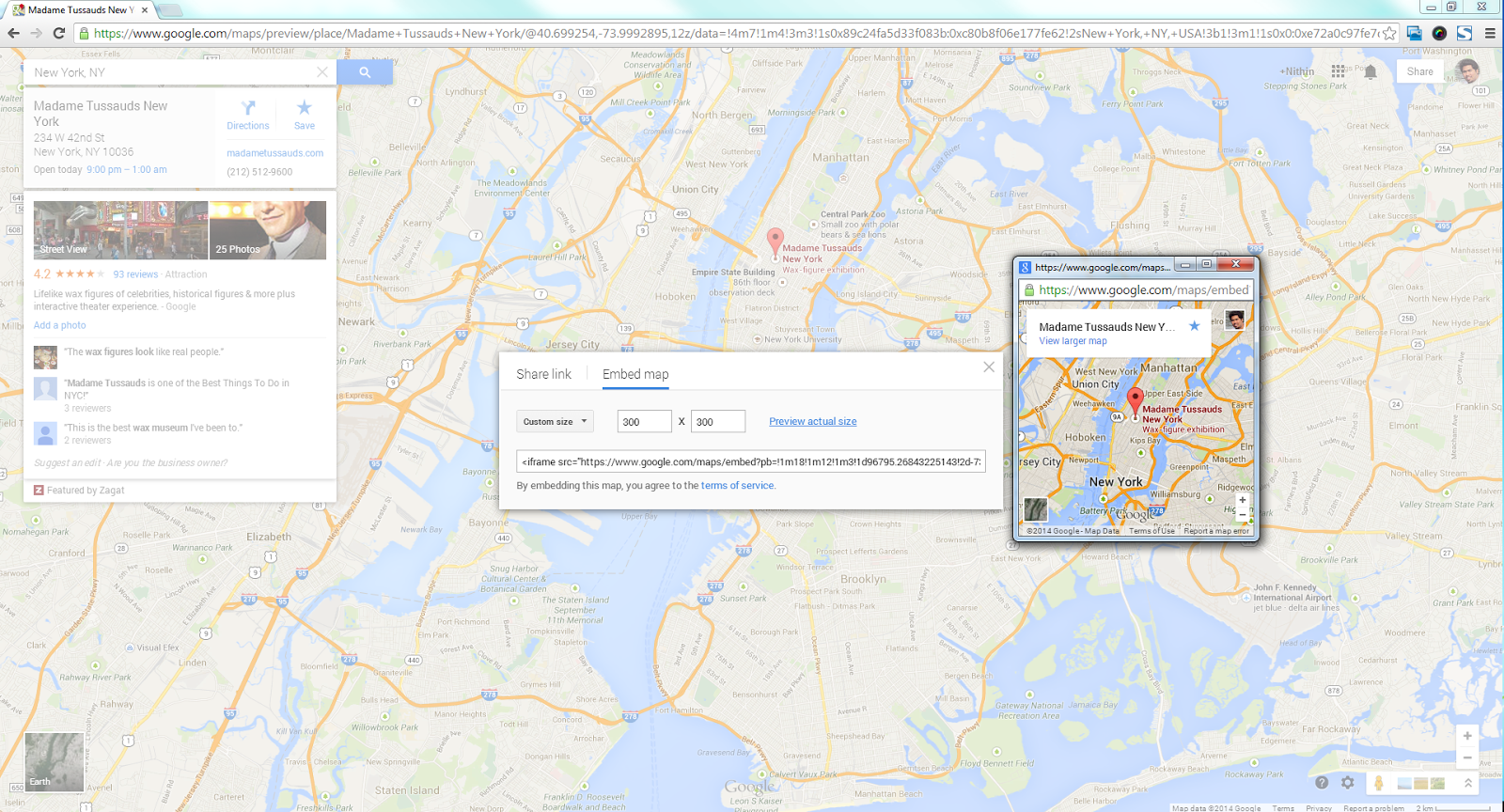
We can change the size of the maps by using custom size.Google maps also provides option to preview your custom size by clicking on preview option.A new window will be popped out for preview.
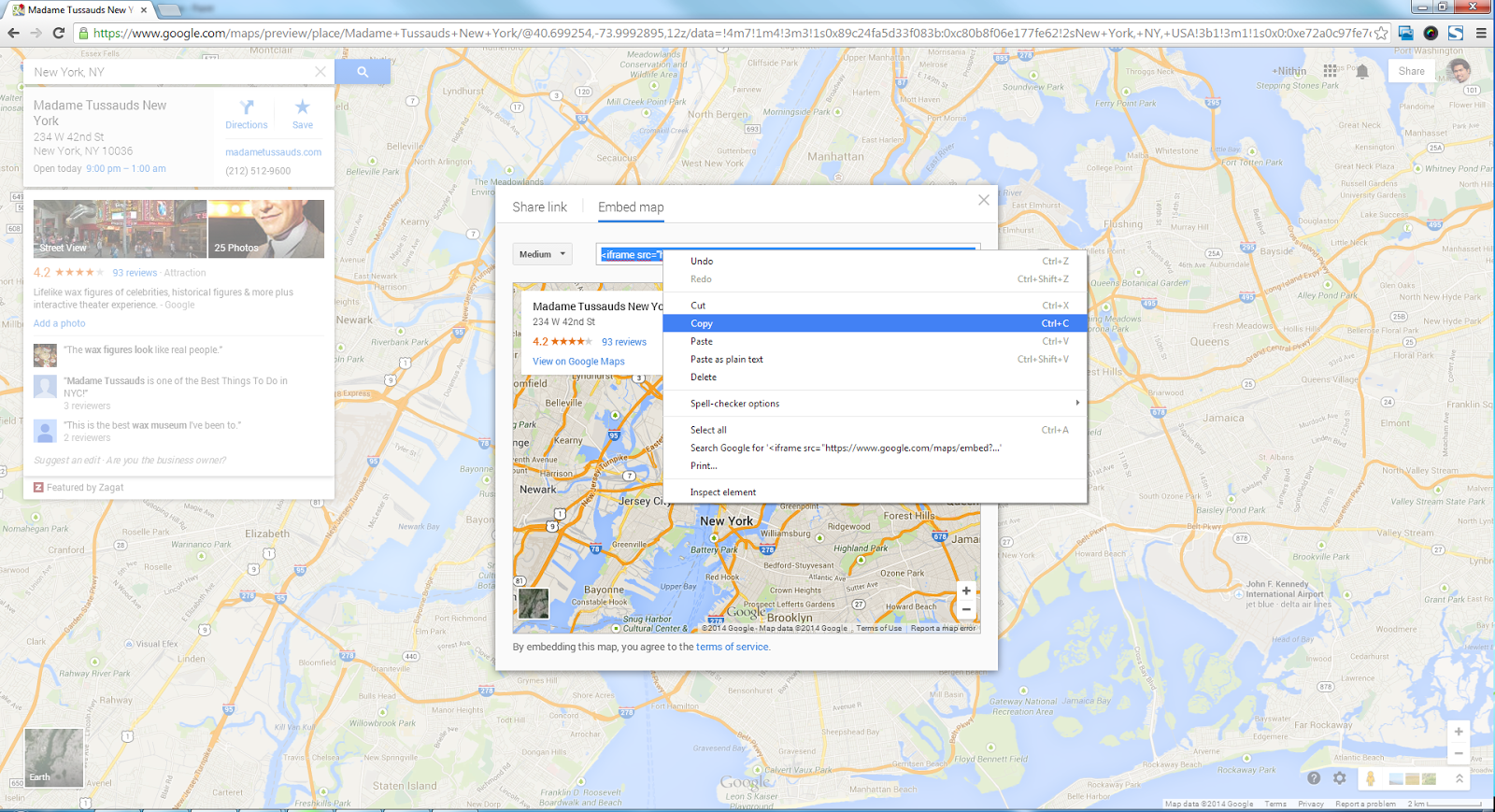
For now we will be using Medium as our map size. Will select medium size and copy the iframe provided.
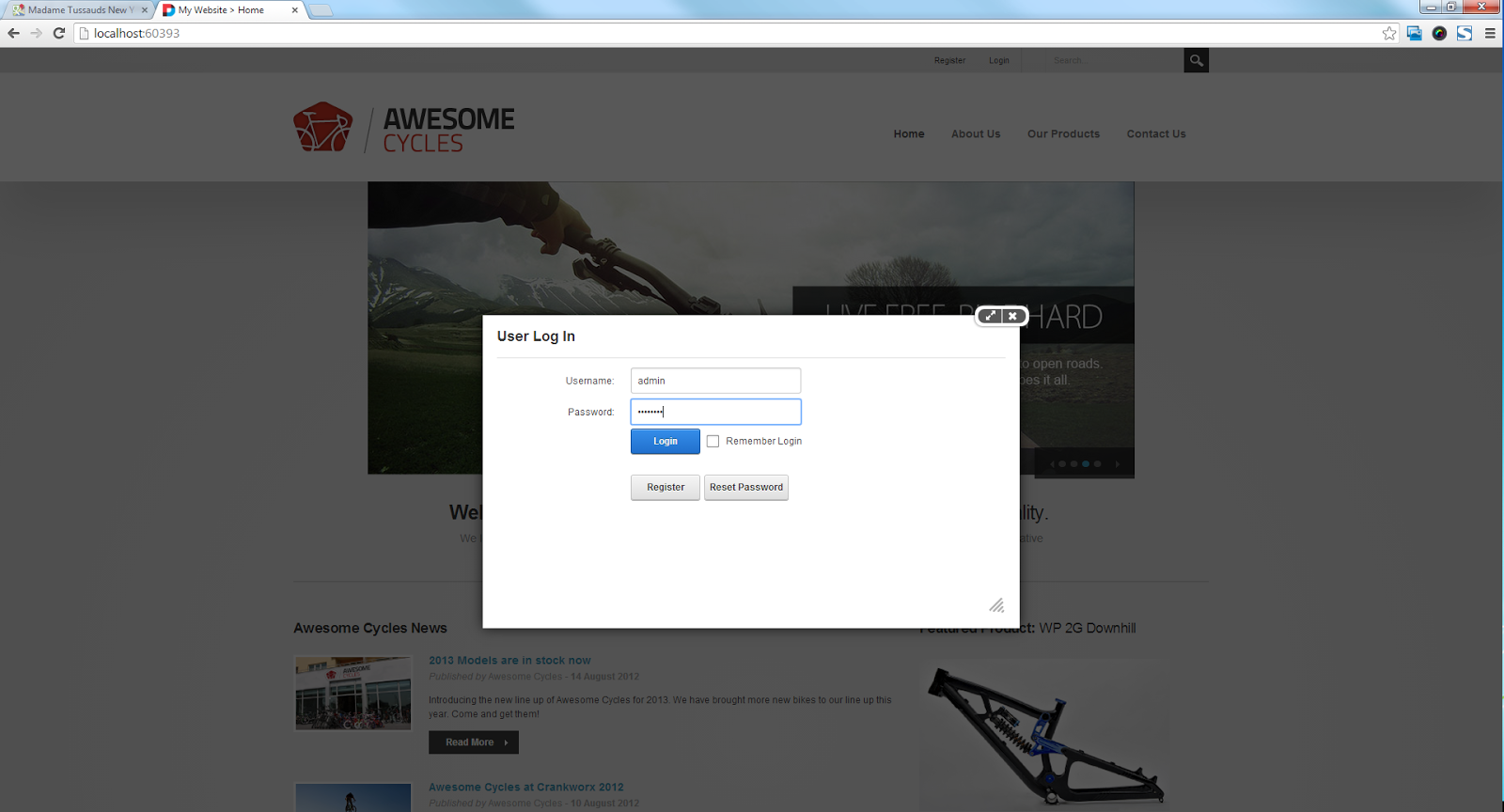
Once iframe is copied will now login to our DNN (DotnetNuke). Add username and password and login to DNN.
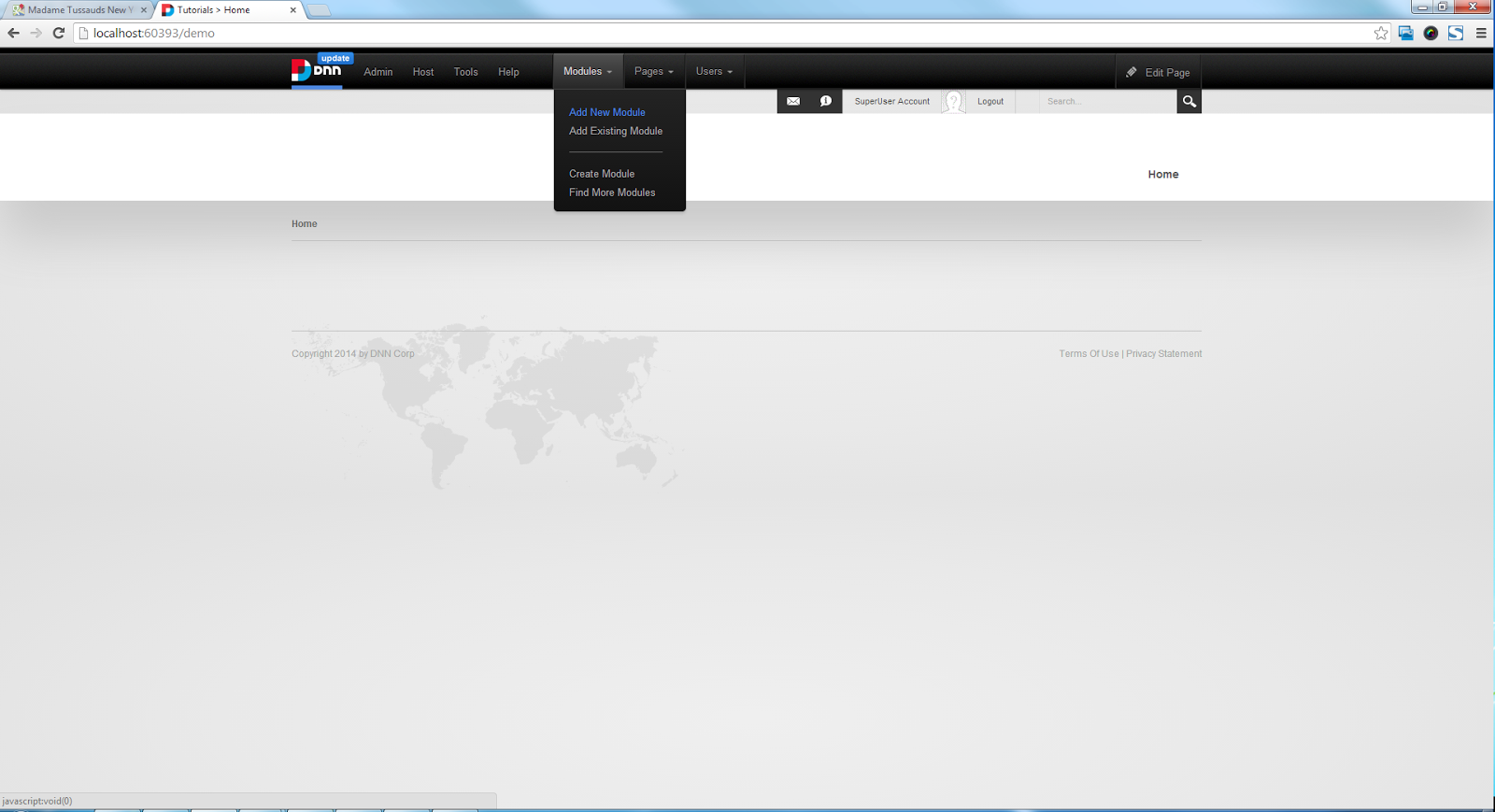
Once DNN is logged in. To place our Google maps on our site we need to add a HTML module to our site. This can be added by navigating to Modules > Add New Module > Selecting Common from the Drop down.
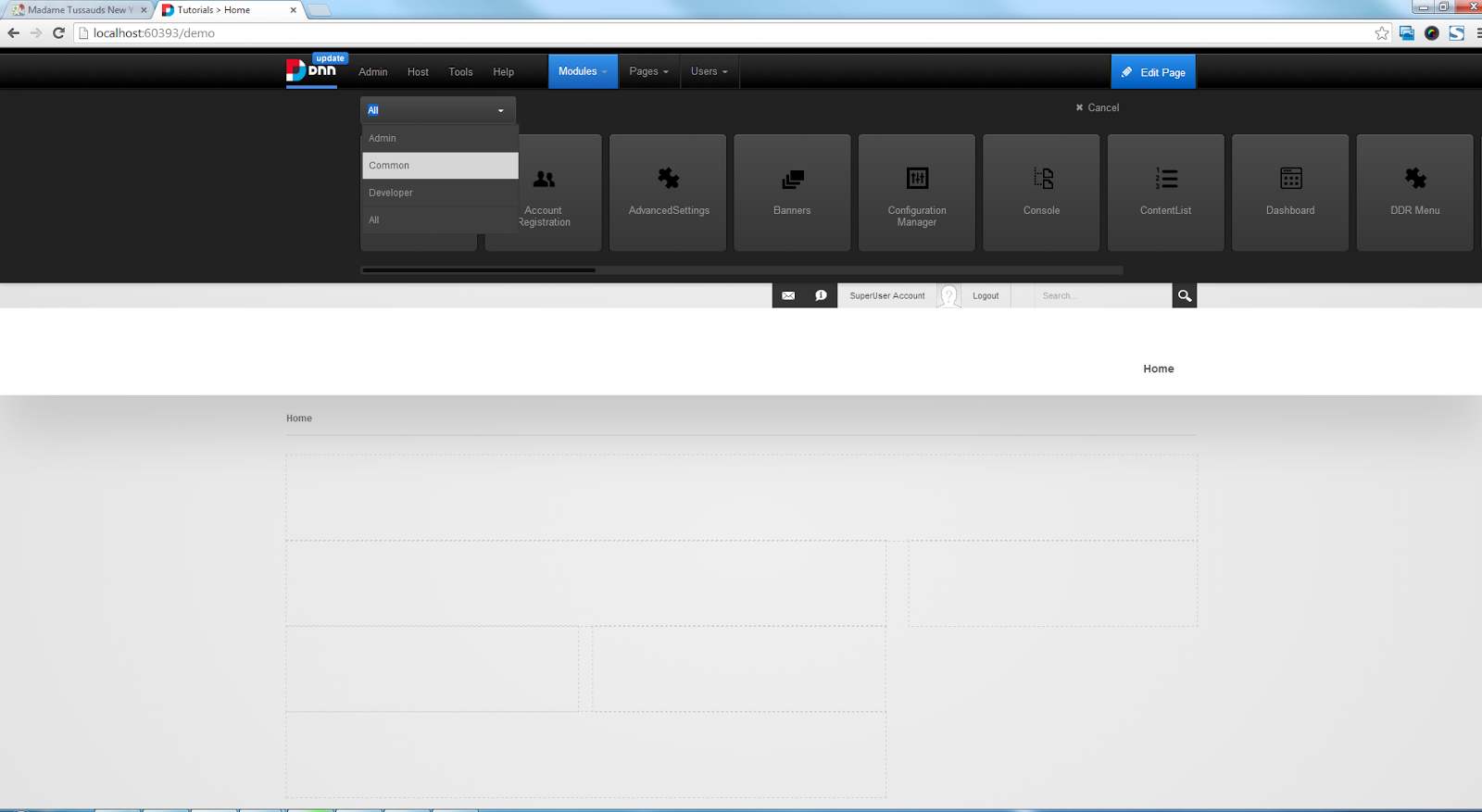
Once common option is selected from drop down options will be narrowed to HTML. Drag the HTML module to your selected pane in my case i am adding module to Content Panel.

Now we have added HTML module to our Content panel. We need to edit content inside our HTML module. This can be completed by clicking on pencil icon existing on the HTML module. In the event you dont have pencil icon navigate to Edit page choice on proper leading corner in the DNN control panel. After pencil icon is clicked click on on edit content.

Once you select Edit Content. A modal popup will appear with all editing option. Initally the editr will be in Design mode change the mode to HTML. This can done just by clicking on HTML option just below the editor.
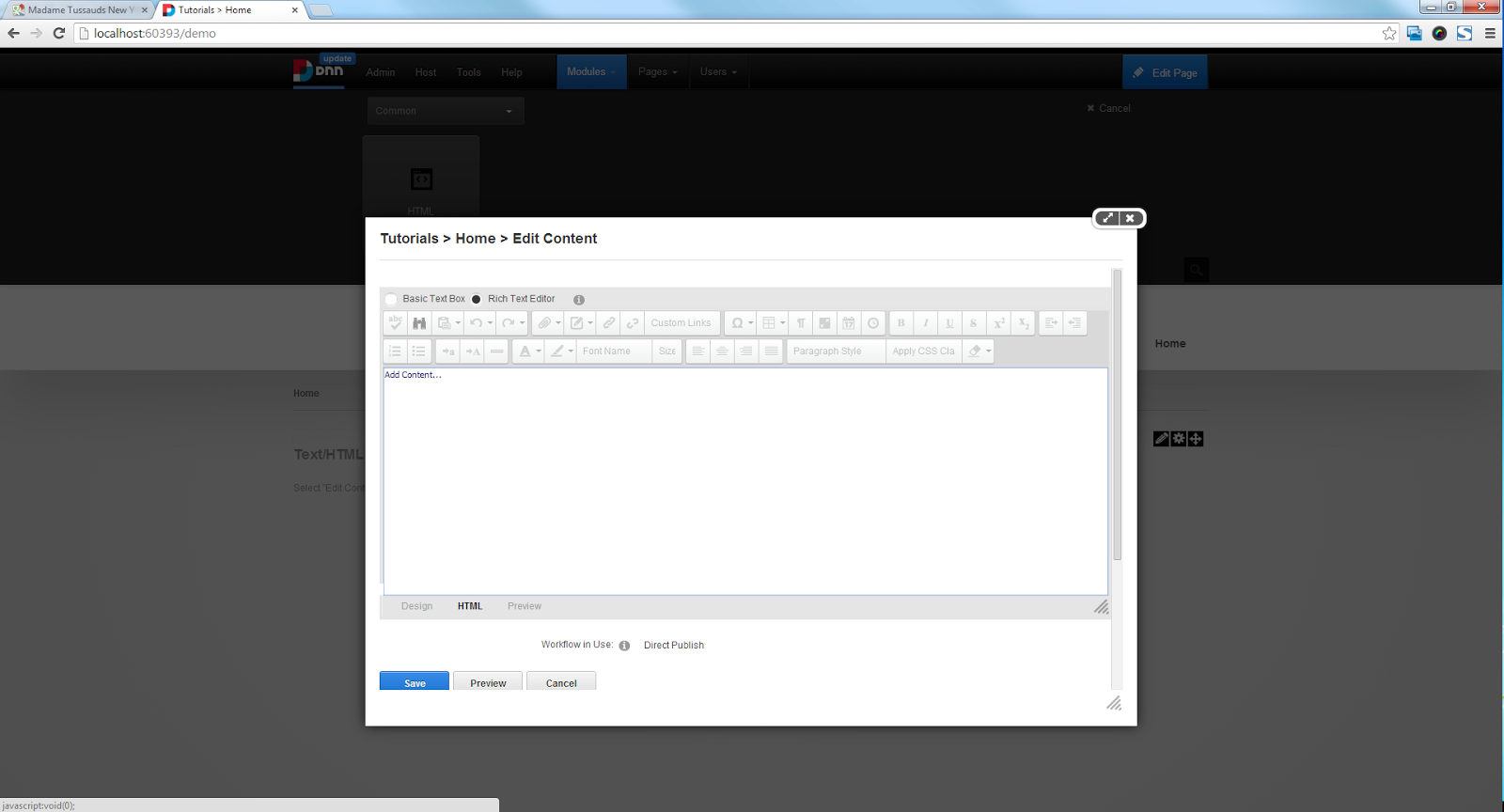
Once you selected HTML mode. Paste the iframe we copied from Google maps to the HTML editor in DNN. After pasting the iframe to DNN editor save the module by clicking on save button.

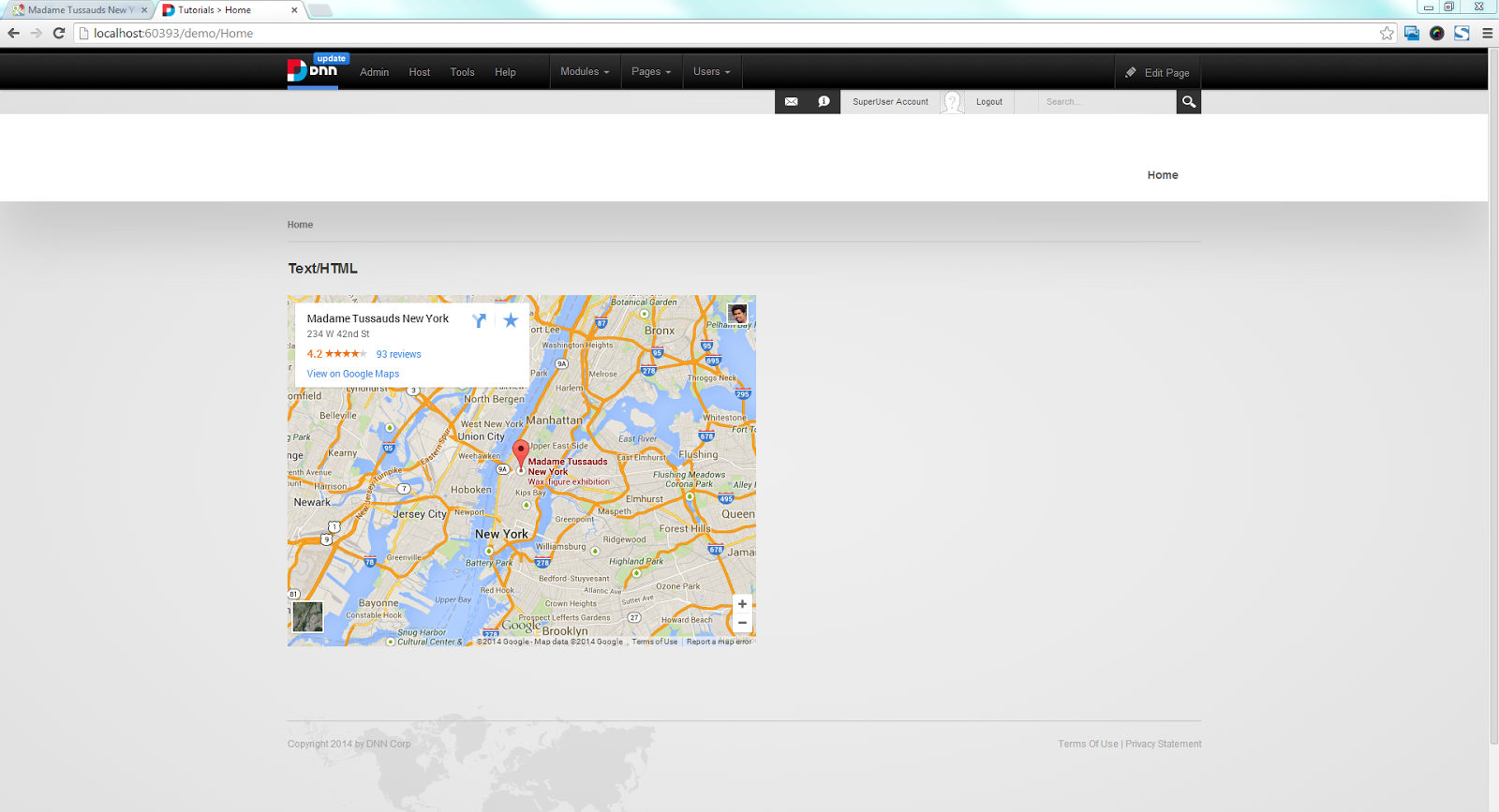
Thats it Google maps will be embeded on your DNN page in a following way.
Hope you liked my tutorial.