
Februarie 24, 2014 06:04 by
 Kenny
KennyDotNetNuke is a program that runs on Microsoft ASP.NET. It is also a framework, meaning, it is a program that is designed to be extended. One of the ways you extend the framework is to create modules. These modules are installed inside a DotNetNuke installation and when they run in that DotNetNuke installation they extend the framework to create a DotNetNuke website also called a portal.
In this article I will tell you about “How to Building an Ecommerce in DotNetNuke Module”

For the first, you will need to open the DotNetNuke website development copy in your Visual Studio. Then simply add a plain file to your eCommerce in DotNetNuke project by making use of a DotNetNuke Dynamic Module template, which comes fully installed with your DotNetNuke Starter Kit package. Open your web.config file to trace the compilation node. Then simply proceed to add a node titled codeSubDirectories under compilation. Add one more item under the codeSubDirectories by using name of your module entered by you in the last step, in the following format: <add directoryName="ModuleName"/>.
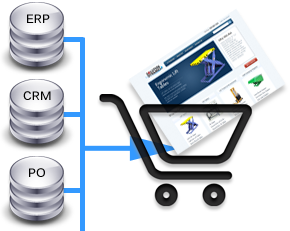
Now, go to the Solution Explorer and proceed by locating the DesktopModules directory. Here, you will find a fresh directory that has been created by Dynamic Module template, below your DesktopModules directory. Rename the directory with the same module name used by you in your previous steps. You must next log-in into the DotNetNuke website, opened previously by you in the Visual Studio, by using the facility of a host account provided for the purpose. Under the main menu of this host account, select the Module Definitions option, and then select the Create New Module option. Now, you will need to fill-up this module form by making use of the same module name used by you in the steps followed earlier.
After that is done, click on the Add Control of the form for Create New Module. From the drop-down list, click select on the file that has been added to it by Dynamic Module template. This file represents module name that was specified in your previous steps; only with the extension:.ascx added to it. You now need to open this.ascx file in the Visual Studio. It will display both a code-behind view and design created by the module template. You can add functionality to this code-behind file as deemed suitable to your eCommerce in DotNetNuke. Visual and layout elements may also be added to your design view, if desired. Before making an attempt to create the module, it is advisable to verify DotNetNuke portal installation functionality.