
Julie 14, 2014 09:34 by
 Kenny
Kenny
How to Optimize Your DotNetNuke Site?
DotNetNuke or DNN is one of the best open source Content Management Systems (CMS) available. When it comes to managing your website system, DNN consistently proves to be a top-level performer. DotNetNuke makes it extremely easy to grant or deny access to pages on your site. The DotNetNuke store is also integrated into the CMS, giving you an end-to-end experience for gaining new features and extending DotNetNuke’s look and capabilities. In this article I wiil explain about how to optimize your DotNetNuke site.

Tips for Optimize Your DotNetNuke Site
Website performance is absolutely critical. Your website visitors become more demanding and less patient by the day. If pages don’t load quickly, you risk losing them. And, after they leave your site, they’ll tell others about it and they won’t come back. Website performance is important to search engines, as well. Google notes that they take site speed into account for search rankings.

First - Visit is the Host Settings page. There are a number of key updates and changes needed in this section.
Appearance, in this section you should uncheck the "Show Copyright Credits" box.
After that Advanced, choose Authentication Settings, in this section you should uncheck "Enabled" for any provider that will not be used in the portal, typically the LiveId and OpenId providers.
Next still Advanced, choose Performance Settings, in this section you should change the "Module Caching Method" to Memory. The "Performance Setting" to HeavyCaching. And the "Compression Setting" to GZip Compression.
The last for first step is still in Advanced, and choose Other Settings, in this section you should change the "Scheduler Mode" to Timer. You should enable the "Event Log Buffer" and disable the "Auto-Sync File System" option.
Second - Choosing the right DotNetNuke skin for fast load time. Generally, CSS-based skin layouts are safe bets, with menu components like Telerik and CSS NavMenu. Sometimes the skin is what can make the difference for your website’s load time. If you opt for a custom skin, make sure to choose a web designer who adheres to best practices.
Third - Optimize your images. Larger images result in longer load times. So pick the right size for the job. Also, choose the right image format for the job at hand. Be sure to resize images directly, rather than using HTML scaling. Setting width="600" height="220" doesn’t work well – and, you’re still forcing the larger file to be downloaded in full.
Fourth - Use a Content Delivery Network (CDN). Content Delivery Networks (CDN) can be effective for serving up static content, including images, multimedia and file downloads. They’re known for providing high availability and high performance. Their distributed nature means that content is being served up “closer” to the end user.
Fifth - Avoid bad requests. Check for HTTP 404 errors (“Page Not Found”) and avoid re-directs on resources. Also, monitor server errors and work with your developers to address any repeated errors.
Summary
There are some tips for optimize your DotNetNuke site. Many people charge a lot of money to make these simple performance tweaks and I just laid them all out on the table for you fre of charge. Feel free to share your comments below, if you have questions please visit the forums.
Junie 5, 2014 06:15 by
Ben
404 Handling is the process of managing what happens when a visitor comes to your site and enters a Url/follows a link which isn't valid. The correct handling of 404 errors can really mean the different between a professional looking site, and one that still looks like it is in development. The name ‘404 Error’ is used because the web server returns a response code of ‘404’, meaning it couldn't find a matching file/resource for the Url. A well developed 404 strategy will retain users, keep search engines up to date and in general make your site look like a polished and finished effort.

Here is the tips how to fix 404 Handling Error on DotNetNuke 7 :
Keep in mind that a prerequisite for this strategy is that you must be using ASP.Net 3.5 SP1 or later. This will not work in earlier .Net Framework versions. Look at the customErrors section below in web.config:

There are a few things to notice here. First, the addition of redirectMode=”ResponseRewrite”. This enables a rewrite of the error page rather than a redirect. The next thing to notice is the specific instruction on what page handles 404 errors. Rather than ‘TheErrorPage.aspx’, 404 errors are handled by ‘404.aspx’.
Now we get to some specifics in DNN. In your DNN site create 'TheErrorPage.aspx' and '404.aspx' (or whatever you want to name them) in the root of your website. From my testing this does not work if you were to add this as a page within DNN itself (i.e. via Pages → Add). Instead, manually add these error pages in the root of the site.
Lastly add this bit of code to the 404.aspx error page:
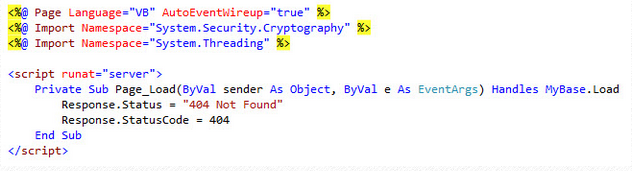
This code simply ensures a 404 status is returned when the page loads, which should only be for 404 errors. You could do this in C# as well. You can add any HTML you would like to this page so you can provide a friendly 404 error page.
404 Error on DNN 7 Installation
If you are encountering an issue with DNN 7 installations that causes most of DNN's URLs to result in 404 errors then please try to following fix.
Within your site's web.config file locate the opening tag for the "modules" section of the web.config file which is:
"<modules>" (without quaotation marks)
Then modify it so that it reads as follows:
"<modules runAllManagedModulesForAllRequests="true">" (without quotation marks)
Then save the web.config file and restart your site.
That should resolve the issue and allow your links and pages of your DNN 7 installation to resolve correctly.
Need DotNetNuke hosting? Please visit our site at http://www.asphostportal.com. Just with only $4.00/month to get DotNetNUke hosting. If you have any further questions, please feel free to email us at [email protected].
ASPHostPortal.com, Microsoft No#1 Recommended Spotlight Hosting Partner, is now providing this FREE DOMAIN and DOUBLE SQL Space promotion link for new clients to enjoy the company's outstanding web hosting service.
April 30, 2014 07:05 by
Kenny
DotNetNuke is a web content management system based on Microsoft .NET. The Community Edition is open source. DotNetNuke was written in VB.NET, though the developer has shifted to C# since version 6.0. It is distributed under both a Community Edition MIT license and commercial proprietary licenses as the Professional and Enterprise Editions.

In this article, I will explai n about how to allow large file uploads in DotNetNuke. Usually we come across the requests to set larger file uploads for the editor in DotNetNuke. The default setting allows you to upload 4mb which if you want to upload media files is not enough. Here are the changes required to upload larger files via editor and file manager in DotnetNuke.
The example is based on using the TelerikEditorProvider set as the default html editor for the site and is based on DNN 7.0
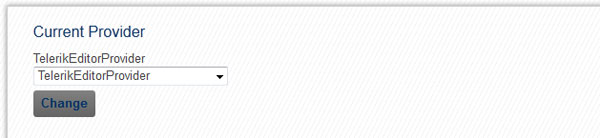
1. First, you must set the TelerikEditorProvider as the default editor for the site.
Under host HTML Editor Manager you can see the current provider and change it if required to TelerikEditorProvider
2. Set the default upload size for the file managers
By clicking on everyone under Default Configuration you can access the editor settings. In the editor configuration tab you can allow additional file extensions (make sure they are set as allowed under host settings as well) and set the file upload size for all types of file managers.
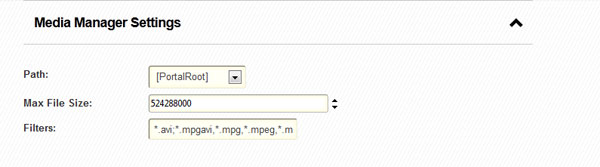
The values are in bytes so for example 524288000 = 500mb.
Here are the settings for the Media Manager.
3. Change the ConfigDefault.xml values
If after this you still can see only 4mb as allowed file size in the editor you will have to digg in a bit deeper. Download (make sure you make the backup) ConfigDefault.xml from /Providers/HtmlEditorProviders/Telerik/Config/
Change the required manager properties
<property name="MediaManager.MaxUploadFileSize">4194304</property>
for 500mb upload change to
<property name="MediaManager.MaxUploadFileSize">524288000</property>
The values are in bytes 524288000 = 500mb
Save an upload to /Providers/HtmlEditorProviders/Telerik/Config/ overwiting the current file.
4. Changes in the web.config file
Make sure you make the back up and then find the following code
<!-- Forms or Windows authentication -->
<authentication mode="Forms">
<forms name=".DOTNETNUKE" protection="All" timeout="60" cookieless="UseCookies" />
</authentication>
<!--
<identity impersonate="true"/>
<authentication mode="Windows">
</authentication>
-->
<!-- allow large file uploads -->
<httpRuntime useFullyQualifiedRedirectUrl="true" maxRequestLength="8192" requestLengthDiskThreshold="8192" />
First change
<forms name=".DOTNETNUKE" protection="All" timeout="60" cookieless="UseCookies" />
to
<forms name=".DOTNETNUKE" protection="All" timeout="9000" cookieless="UseCookies" />
This will prevent the timeout during upload, the value is in seconds.
After that change
<httpRuntime useFullyQualifiedRedirectUrl="true" maxRequestLength="8192" requestLengthDiskThreshold="8192" />
to
<httpRuntime useFullyQualifiedRedirectUrl="true" maxRequestLength="512000" requestLengthDiskThreshold="512000" />
This value is in kilobytes 512000 = 500mb
In some cases this should be all, however if you receive I/O error during upload there is another line of code you need to add in web.config
in
<configuration>
<system.web> section.
<configuration>
...
<system.web>
<httpRuntime maxRequestLength="512000" executionTimeout="9000" />
...
</system.web>
</configuration>
The maxRequestLength value is in kilobytes 512000 = 500mb
5. Changes in IIS7
Sometimes in IIS7 and if you have access to the server you may need to check that the overrideModeDefault property is set to to "Allow" in C:\Windows\System32inetsrv\config\applicationHost.config
<section name="requestFiltering" overrideModeDefault="Allow" />
Following these steps you should be able to set the file upload limits up to 2GB.
April 2, 2014 09:56 by
Kenny
Good news, no you can adapt DotNetNuke portal to mobile devices without changing your existing desktop experience. The latest trend in web development is exciting to say the least - with increasing in Mobile device penetration around the globe. Mobile devices already have displaced many of the fixed-location technologies especially in rural in developed world or countries like India Brazil and China that are currently filling the global economic growth. MobiNuke is exposing a rich set of mobile device capabilities available to be used by module or skin developers.
Main Features
- You will apply separate skins for mobile experience.
It can be when you want to set different skins that will be applied when pages are accessed from mobile devices. Don’t worry it will not change the skin for your desktop browsers. And now skin designers can develop mobile friendly skin sets together with desktop skins.
- Mobile devices access the portal through a lighter page.
It will be fast, because anything that is not needed by a mobile device is cleaned out. The content type and MIME type are set to specific values for mobile browsers.
- It’s up to you for enable or disable any existing modules for mobile context or for PC.
You can set some modules to show only on PC and others only on mobile devices. You can do different set up for each page.
- Support for mobile versions of existing modules.
Developers can extend their modules for mobile context.
- Expose mobile device capabilities.
Developers can get properties such as device type, screen dimensions, if JavaScript or online video is supported and more than 500 other mobile device properties.
How to Make it Work
- Download and install MobiNuke through Host->Module Definitions-> Install New Module.
- Add mobiNuke to any page. It will add itself to all the pages and will act as an extra setting.
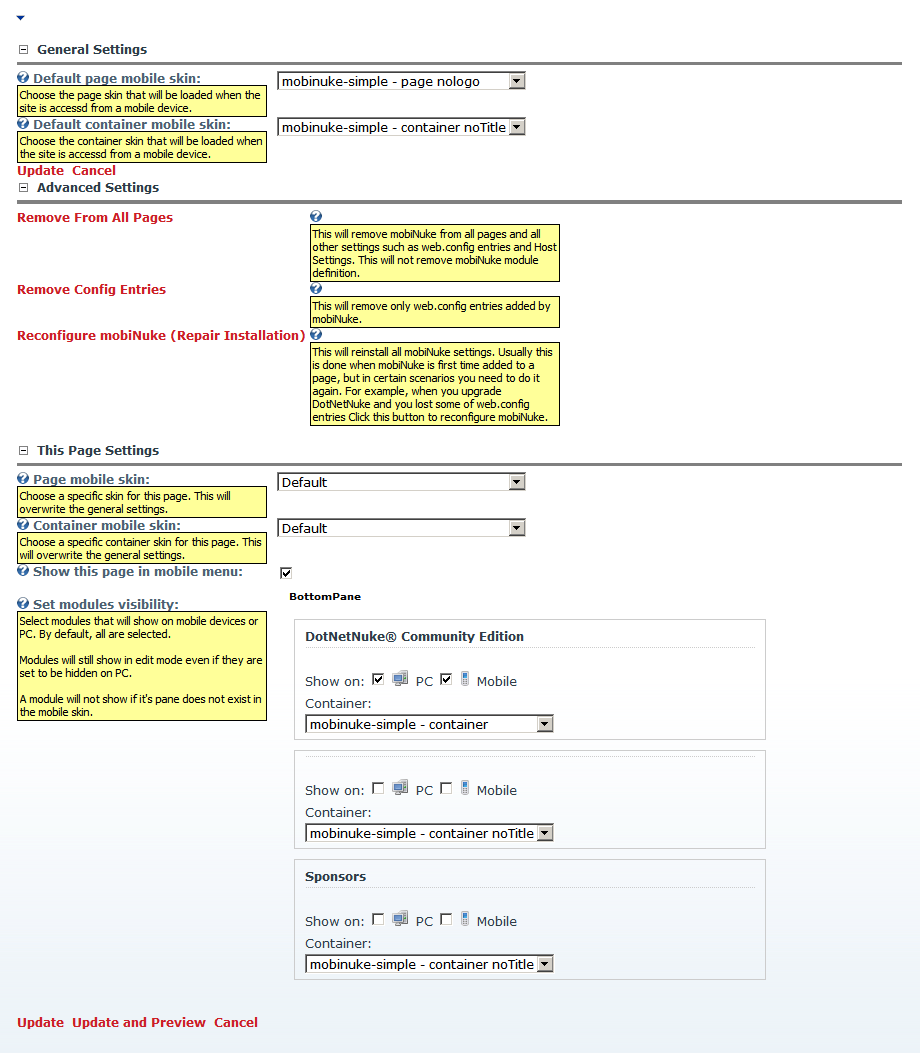
- Click on Mobile Settings to configure general settings and page specific settings for mobile access.
Technical Details
MobiNuke contains 5 components:
- A httpModule that redirects request coming from a mobile device to DefaultMobi.aspx
- A DotNetNuke Module with the following functions:
- When added for the first time it will auto-configure itself to be present on all pages;
- Manage the skin to be loaded when the page is accessed from a mobile device;
- Preview the page close to the way it looks on a mobile device;
- Enable or disable tab modules for mobile pages;
- A DefaultMobi.aspx page for mobile context that has the same function as Default.aspx. Anything that is not usable on mobile devices is cleaned out.
- A set of minimal skins suitable for mobile browsing. Currently the mobile skin contains only the ContentPane. It only shows the corresponding modules from the ContentPane of the desktop skin.
- A mobile friendly navigation provider.