
Junie 5, 2014 06:15 by
 Ben
Ben
404 Handling is the process of managing what happens when a visitor comes to your site and enters a Url/follows a link which isn't valid. The correct handling of 404 errors can really mean the different between a professional looking site, and one that still looks like it is in development. The name ‘404 Error’ is used because the web server returns a response code of ‘404’, meaning it couldn't find a matching file/resource for the Url. A well developed 404 strategy will retain users, keep search engines up to date and in general make your site look like a polished and finished effort.

Here is the tips how to fix 404 Handling Error on DotNetNuke 7 :
Keep in mind that a prerequisite for this strategy is that you must be using ASP.Net 3.5 SP1 or later. This will not work in earlier .Net Framework versions. Look at the customErrors section below in web.config:

There are a few things to notice here. First, the addition of redirectMode=”ResponseRewrite”. This enables a rewrite of the error page rather than a redirect. The next thing to notice is the specific instruction on what page handles 404 errors. Rather than ‘TheErrorPage.aspx’, 404 errors are handled by ‘404.aspx’.
Now we get to some specifics in DNN. In your DNN site create 'TheErrorPage.aspx' and '404.aspx' (or whatever you want to name them) in the root of your website. From my testing this does not work if you were to add this as a page within DNN itself (i.e. via Pages → Add). Instead, manually add these error pages in the root of the site.
Lastly add this bit of code to the 404.aspx error page:
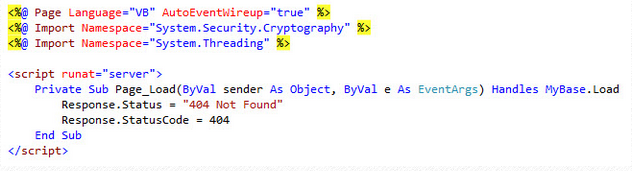
This code simply ensures a 404 status is returned when the page loads, which should only be for 404 errors. You could do this in C# as well. You can add any HTML you would like to this page so you can provide a friendly 404 error page.
404 Error on DNN 7 Installation
If you are encountering an issue with DNN 7 installations that causes most of DNN's URLs to result in 404 errors then please try to following fix.
Within your site's web.config file locate the opening tag for the "modules" section of the web.config file which is:
"<modules>" (without quaotation marks)
Then modify it so that it reads as follows:
"<modules runAllManagedModulesForAllRequests="true">" (without quotation marks)
Then save the web.config file and restart your site.
That should resolve the issue and allow your links and pages of your DNN 7 installation to resolve correctly.
Need DotNetNuke hosting? Please visit our site at http://www.asphostportal.com. Just with only $4.00/month to get DotNetNUke hosting. If you have any further questions, please feel free to email us at [email protected].
ASPHostPortal.com, Microsoft No#1 Recommended Spotlight Hosting Partner, is now providing this FREE DOMAIN and DOUBLE SQL Space promotion link for new clients to enjoy the company's outstanding web hosting service.