Maart 13, 2014 12:50 by
 Kenny
KennyIn this article, i'm going to explain how about you can convert .html file into a master page.
SharePoint 2013 offers a simplified user experience and added enterprise social media capabilities, which expand upon previously offered capabilities for website management that include shared calendars, blogs, wikis, surveys, document libraries and shared task lists. You can convert .html file into a Master Page using Design Manager in SharePoint 2013, you can convert .html file into a Master Page. After completion of the conversion process both HTML and Master Pages are get associated with each other, so when you change the HTML file and save, the changes are synced to the associated Master Page. If you use Design Manager in SharePoint 2013 then you do not have to know about SharePoint specific mark-up or ASP.NET. As a designer you can concentrate on CSS, HTML and JavaScript.

Remember that the synchronization process works in one direction only, any changes to the HTML page are synced to the master page but If you change the master page then those changes would not reflect in HTML page. Every HTML master page has a property Associated File which is set to true by default.
Now we will start to convert HTML page into Master Page
Before converting HTML page, you have to upload all your design files to mapped drive. Map a network drive to Master Page gallery navigate to the design manager using site settings
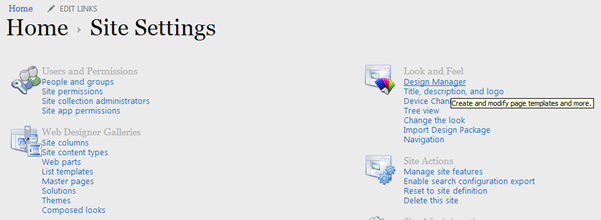
In Design Manager , click the fourth link Edit Master Pages
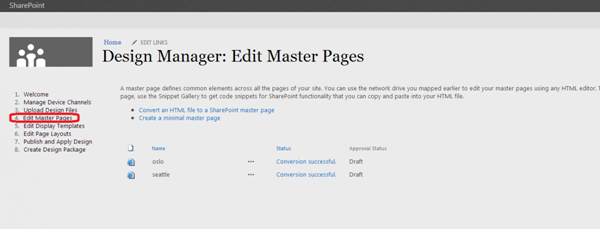
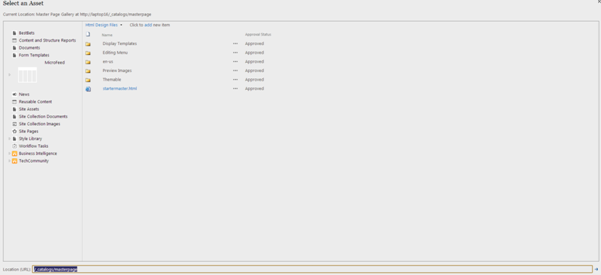
Then click the convert HTML file to a SharePoint Master page link , In Select an Asset dialogue box browse the design files that you want to convert.